

There are many ways to hide files in images on the web, which can also be done in Python, which avoids the blocking method of matching links or text. Most of the rumors circulating on the Internet are rar format. I have tried it for free, zip can also, find some information, and organize the process as follows.
Save this image to the right, you can see that it is a picture with suffix JPG
(This is not the original Picture)
But after renaming it to a zip-suffixed zip file, you will get other files.

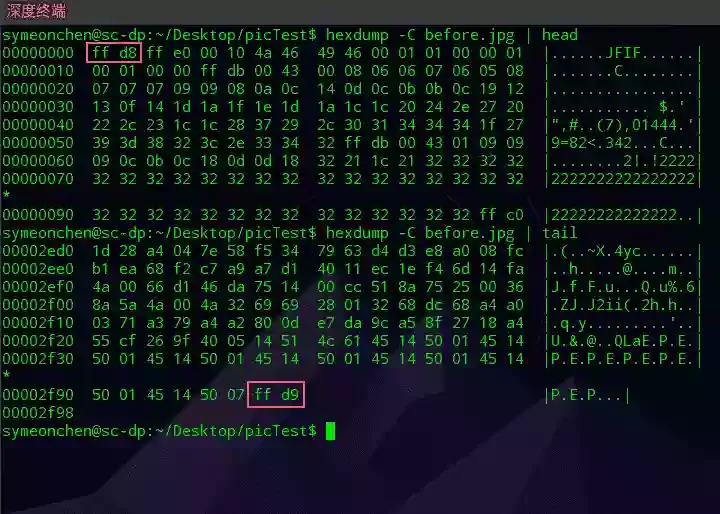
The JPG picture is binary, which uses 0xFF, 0xD8 as the SOI (Start Of Image) of the file, and 0xFF, 0XD9 as the EOI (End Of Image) of the file. See wiki for details on the structure.
Take the image begin.webp as an example, we can use
hexdump -C before.JPG | headand
hexdump -C before.JPG | tailto see its binary value
Similarly, we look at the binary value of the zip file. The Local file header Signature and the End of central directory record Signature are 0x504b0304 and 0x504b0506 respectively. For details, see [here](https://users.cs.jmu.edu/buchhofp/ Forensics/formats/pkzip.html)
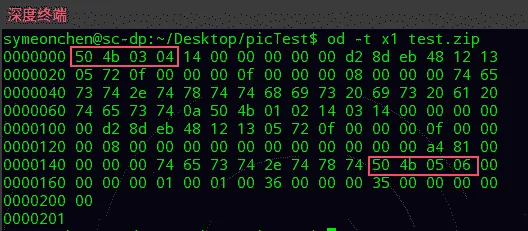
We will splicing two binary files into one. Because JPG format must use special identifier as the file header, zip and rar only need to include special identifiers. Therefore, when the generated files are given different suffixes, they can be used as different file formats. This file is also called Poyglot and refers to the definition on wiki:
In computing, a polyglot is a computer program or script written in a valid form of multiple programming languages, which performs the same operations or output independent of the programming language used to compile or interpret it.
lab environment:
To implement this function, there are many ways, even one line of code like
cat test.zip >> before.JPGcan be achieved. But now we can use Python to do more exploration.
Step:
First, generate a zip file
import zipfile
with zipfile.ZipFile('test.zip', 'w') as f_zip:
    f_zip.write('test.txt')
Then read the zip file
with open('test.zip', 'rb') as f:
    data_txt = f.read()
Similarly, read JPG files
with open('before.JPG', 'rb') as f:
    data_JPG = f.read()
Finally, write a new JPG
with open('after.JPG', 'wb') as f:
    data = data_JPG + data_txt
    f.write(data)
Finally, delete the generated zip file
import os
os.remove('test.zip')
In this way, the txt file is successfully hidden in the JPG file.
When generating a zip file, multiple files can be written.
import zipfile
with zipfile.ZipFile('test.zip', 'w') as f_zip:
    f_zip.write('test.txt')
    f_zip.write('test1.txt')
Zipfile also supports compression while being packaged into zip
with zipfile.ZipFile('test.zip', 'w',zipfile.ZIP_DEFLATED) as f_zip:
    f_zip.write('test.txt')
If you need to compress an entire folder, you can use glob to traverse the file name in the folder to generate a list.
hexdump -C before.JPG | tail0 The reason for choosing zip is because Python natively supports zip. If you want to use rar, you can choose rarfile or other third-party modules.
If you have anything you'd like to discuss, any ideas you want to bounce around, please send me a message.
